
Attributes
Every task in Orsane is described by a set of attributes. Some are built-in and always present (like Status or Assignee); others are custom attributes you define to match how your team works.
Built-in attributes
Section titled “Built-in attributes”These come with every team and can’t be removed. They appear alongside custom attributes in filters, sort menus, and grouping options.
| Attribute | What it represents |
|---|---|
| Status | Workflow state — driven by the configured task statuses. |
| Priority | Low, Medium, High, or Urgent. |
| Assignee | One or more team members responsible for the task. |
| Due date | When the task is expected to be done. |
| Lists | The lists the task belongs to. |
| Parent task | The task this one is nested under (see Subtasks). |
| Created by | The user who created the task. |
| Created at | Timestamp of creation. |
Custom attributes
Section titled “Custom attributes”Custom attributes are team-scoped — defined once in Settings → Attributes and available on every task across the team. Each attribute has a name, a type, and (for dropdowns) a configurable list of options.
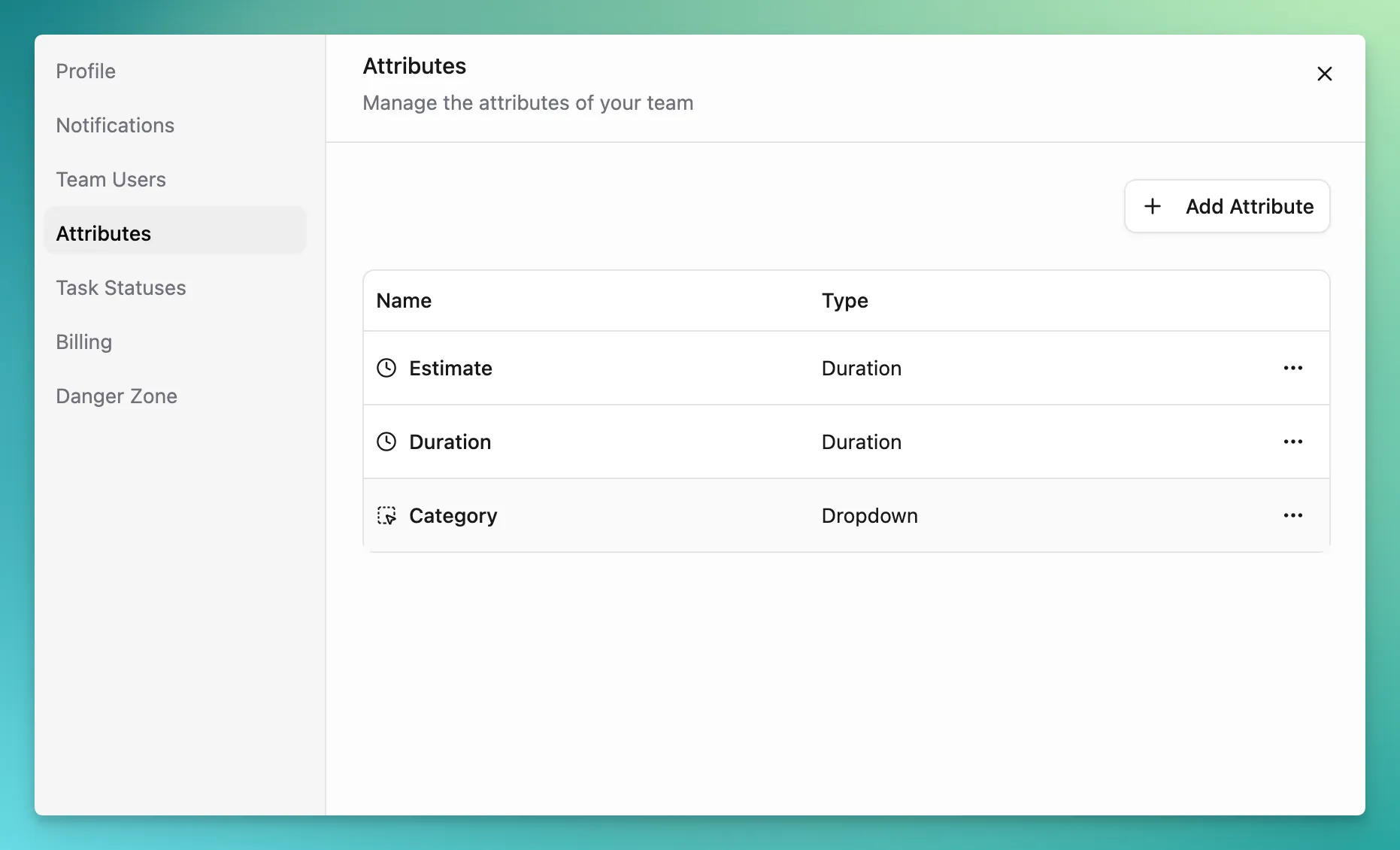
There are four types you can create:
A free-form text field. Use it for short labels, ticket references, codes — anything that doesn’t fit a more structured type. There’s no length limit enforced in the UI, but keep entries short if you plan to display them as a column in lists.
Number
Section titled “Number”A numeric field that accepts integers and decimals. Common use cases: story points, estimates that aren’t time-based, or counts.
Time tracking. A Timer attribute holds a list of individual time entries rather than one number, and shows their total on the task. Start and stop a running timer, or log a duration after the fact; only one timer runs at a time across your whole workspace, and a button at the bottom of the sidebar shows what is recording and jumps you to it.
Durations are typed in a forgiving format — 5 (five hours), 5d 3h 20m,
01:33 or 1:33:20 all work.
See Time tracking for the full guide: the timer panel, editing and deleting entries, and what the total on a task means.
Dropdown
Section titled “Dropdown”A single-select field with a configurable option list. Add the choices when you create the attribute, and pick one per task. Useful for categories, environments, channels, or any small fixed set of values.
Where attributes show up
Section titled “Where attributes show up”Once defined, every attribute — built-in or custom — is available in a few places:
- Task detail panel — listed under the task’s properties, where you can read or change the value.
- Lists and boards — show any attribute as a column or hide it via Display options.
- Filtering — narrow a list to tasks where a built-in attribute matches a condition.
- Sorting and grouping — sort or group a list by a built-in attribute; grouping by Status, for example, gives you a swimlane per status.