
Team users
Every Orsane team has a list of team users — the people who can sign in, see your tasks, and collaborate. Invites, roles, and removals are all managed from one place: Settings → Team Users.
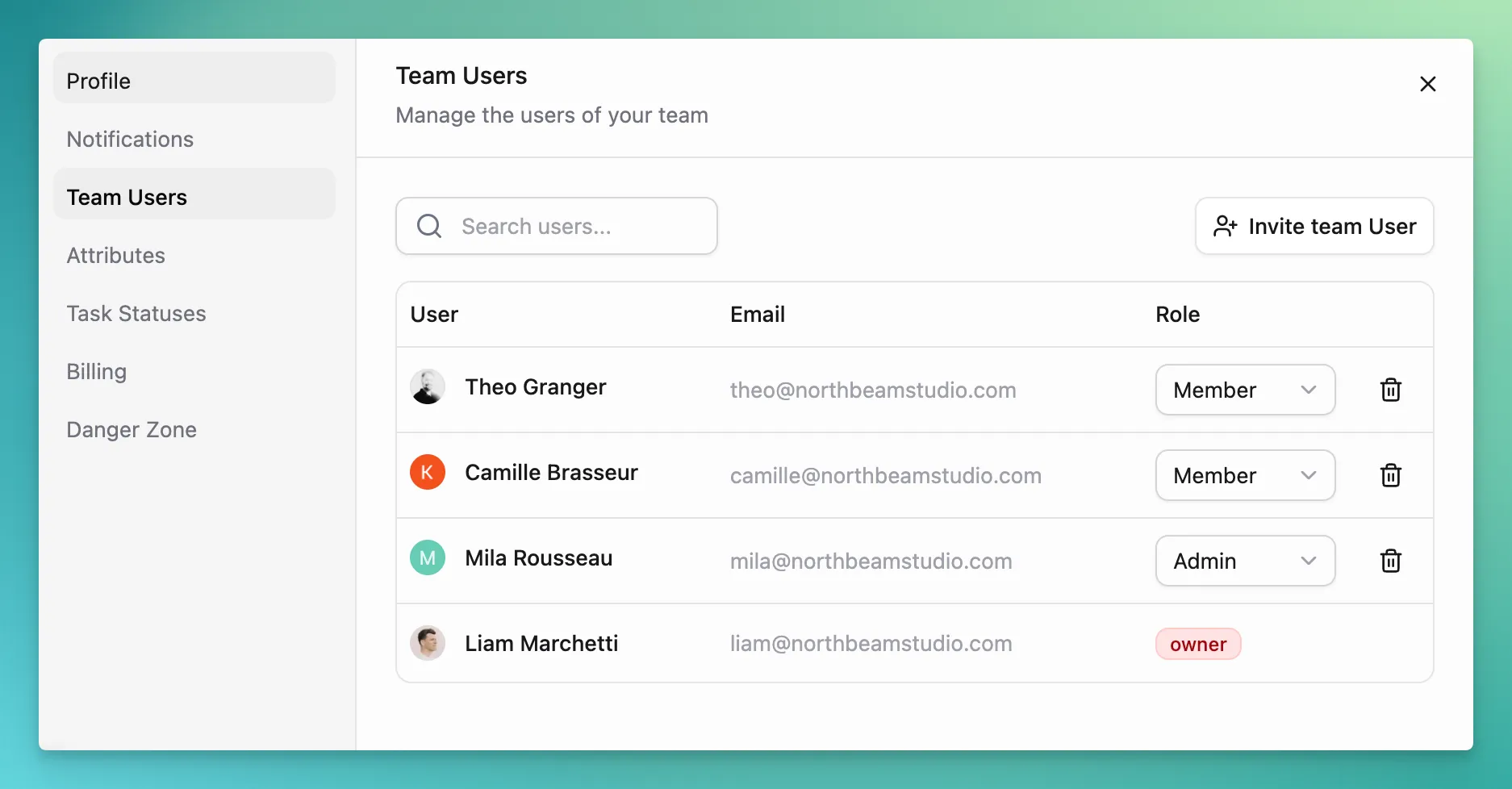
The panel lists every active member alongside any pending invitations, with a search field at the top that filters by name, email, or role as you type.
Each user has one of three roles. The role determines what they can see in Settings and what they can do to other team members.
| Role | What they can do |
|---|---|
| Owner | Everything an Admin can do, plus delete the team. There is exactly one owner per team, assigned at creation. |
| Admin | Invite users, change other users’ roles, remove users, and manage team-level settings (Task statuses, Attributes, etc.). |
| Member | Use the team day-to-day. Can edit their own profile and notification preferences, but can’t see the user-management settings. |
Members and admins are interchangeable — you can promote a member to admin or demote an admin back to member at any time. The owner role is fixed: it can’t be reassigned, and the owner can’t be removed from the team.
Inviting a teammate
Section titled “Inviting a teammate”Click Invite team User and enter an email address. Orsane sends an invitation email from your name with a link to join the team. The invitee shows up in the user list immediately with a pending state until they click the link and create (or sign into) their account.
A few things worth knowing:
- Invites go out one at a time — there’s no bulk-invite field.
- The invited user picks their own password during sign-up; you don’t set one for them.
- Until the invitation is accepted, the row in the list represents the invite itself, not a member. You can revoke a pending invite by removing the row.
Changing someone’s role
Section titled “Changing someone’s role”Open the role dropdown on a user’s row and pick the new role. The change takes effect immediately — the next page they load will reflect the new permissions.
The dropdown is hidden in a few cases:
- On your own row — you can’t change your own role.
- On the owner’s row — the owner role is locked.
- On pending invitations — set the role when you invite, or revoke and re-invite.
Removing a user
Section titled “Removing a user”Click the trash icon on a user’s row and confirm. The user loses access to the team immediately on their next request.
The trash icon is hidden for the owner and for your own row — the owner can’t be removed, and you can’t remove yourself from a team you’re a member of.
Who can open this panel
Section titled “Who can open this panel”Only admins and the owner see Team Users in the Settings sidebar. Members can still open Settings to edit their profile and notifications, but the user-management sections aren’t shown to them.