
Notifications
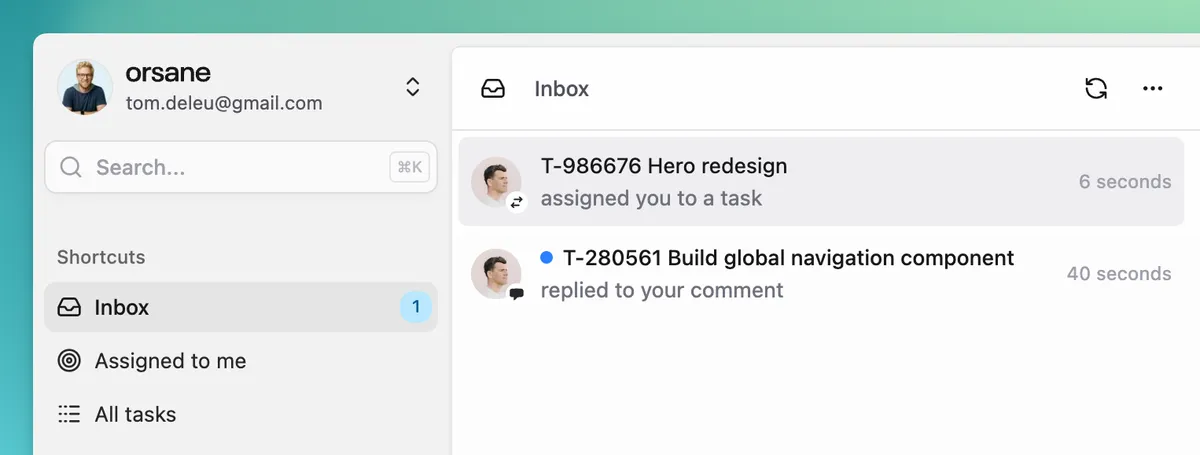
Orsane notifies you when teammates do something that needs your attention — assigning you a task, replying to a comment thread you’re in, or finishing work you created. This article covers what triggers a notification, where you’ll see it, and when it turns into an email.
Where notifications show up
Section titled “Where notifications show up”Notifications surface in three places, in this order:
- The Inbox — the default landing view at my.orsane.app/inbox. Every notification for the active team is collected here, newest first.
- The browser favicon — a red dot appears on the Orsane tab’s icon when you have unread notifications, so you can spot them without switching tabs.
- Email — a per-event email is sent for each notification, with a short delay (see When emails are sent below).
What triggers a notification
Section titled “What triggers a notification”| Event | Who is notified |
|---|---|
| You’re assigned to a task | The new assignee |
| Someone comments on a task you’re part of | Other participants in the thread |
| You’re @mentioned in a task description | The mentioned user |
| You’re @mentioned in a comment | The mentioned user |
| Someone replies to your comment | The original commenter |
| You’re added to a list | The added user |
| Someone marks a task you created as completed | The task’s creator |
A teammate doing something to their own work doesn’t notify themselves — self-actions are skipped to keep the inbox useful.
When emails are sent
Section titled “When emails are sent”When a notification is created, Orsane will send an email after about 5 minutes. Two rules govern what actually goes out:
- If you read the notification in-app before the timer fires, the email is skipped. The idea is that if you’re already in the app, the inbox is enough — there’s no reason to also clutter your mailbox.
- One email per notification type per task. If a task gets several comments in quick succession, you get a single “comment” email for that task, not one per comment. The same idempotency applies to assignments, mentions, and the rest.
Each notification type has its own email template, so a comment email looks different from an assignment email.
Inbox mechanics
Section titled “Inbox mechanics”In the Inbox you can:
- Mark a notification as read or unread. Read state is what drives the favicon dot and decides whether the email is still going to be sent.
- Archive a notification. Archived notifications stop appearing in the list; they aren’t deleted on the server.
- Auto-read on focus. Selecting a notification in the inbox marks it read after a short pause, so you don’t have to click again to clear it.
The unread count and favicon dot update in real time as you (or the 30-second email-skip rule) change a notification’s read state.