
Search and the command menu
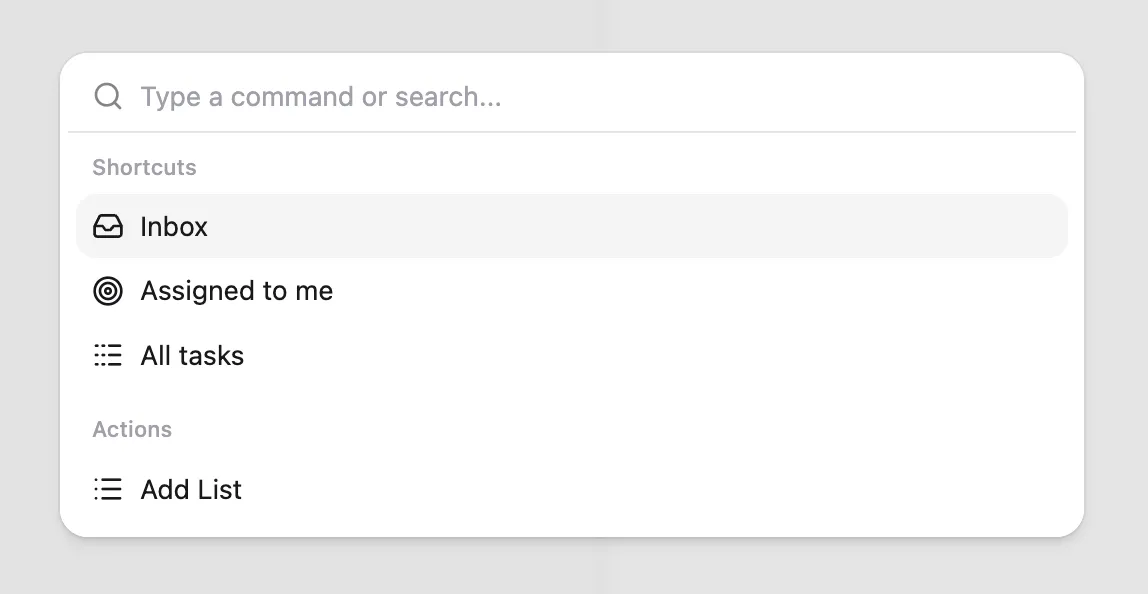
The fastest way to get around Orsane is the command menu. It opens on a keyboard shortcut from anywhere in the app and gives you a single place to search and navigate.
Opening it
Section titled “Opening it”Press
What gets searched
Section titled “What gets searched”Type to filter. Search matches against:
- Task titles — every task you can see in the team.
- List names — every list you’re a member of.
Tasks show up in the format T-{number} {title} so you can recognise a
task by its number. Lists show up with the same colour they have in
the sidebar.
Search does not look inside task descriptions or comments. It’s a “jump to” tool, not a full-text search of every word in the team.
Picking a result
Section titled “Picking a result”- Click a task to navigate to wherever you’d find it and open its detail panel.
- Click a list to open the list view.
Use the arrow keys to move through results and
Built-in shortcuts
Section titled “Built-in shortcuts”When the search box is empty, the command menu shows a handful of quick-access commands instead of results:
- Inbox — jump to your notification inbox.
- Assigned to me — open the view of everything assigned to you.
- All tasks — open the unfiltered team view.
- Add list — open the new-list dialog.
These are always one keypress away regardless of where you are in the app.