
Task statuses
Every task in Orsane has a status that describes where it is in your workflow. Statuses are team-scoped: every task in the team picks from the same shared list, regardless of which list (or lists) it lives in.
The default set
Section titled “The default set”When a team is first created, Orsane provisions five statuses:
| Status | Notes |
|---|---|
| To do | The default status assigned to brand-new tasks. |
| In Progress | Work that’s actively being done. |
| On Hold | Paused intentionally, picked up later. |
| Blocked | Can’t move forward until something else is unblocked. |
| Completed | Marks the task as done and stamps a completion time. |
You can rename, recolour, reorder, add to, or remove from this list to match the way your team works.
Customising statuses
Section titled “Customising statuses”Manage statuses from Settings → Task statuses. You can:
- Rename any status.
- Change the colour to any of 17 preset options.
- Reorder statuses by dragging them. The order is what determines the left-to-right or top-to-bottom sequence in lists, filters, and group views.
- Add a new status — it’s inserted just before “Completed.”
- Remove a status — see Deleting a status below.
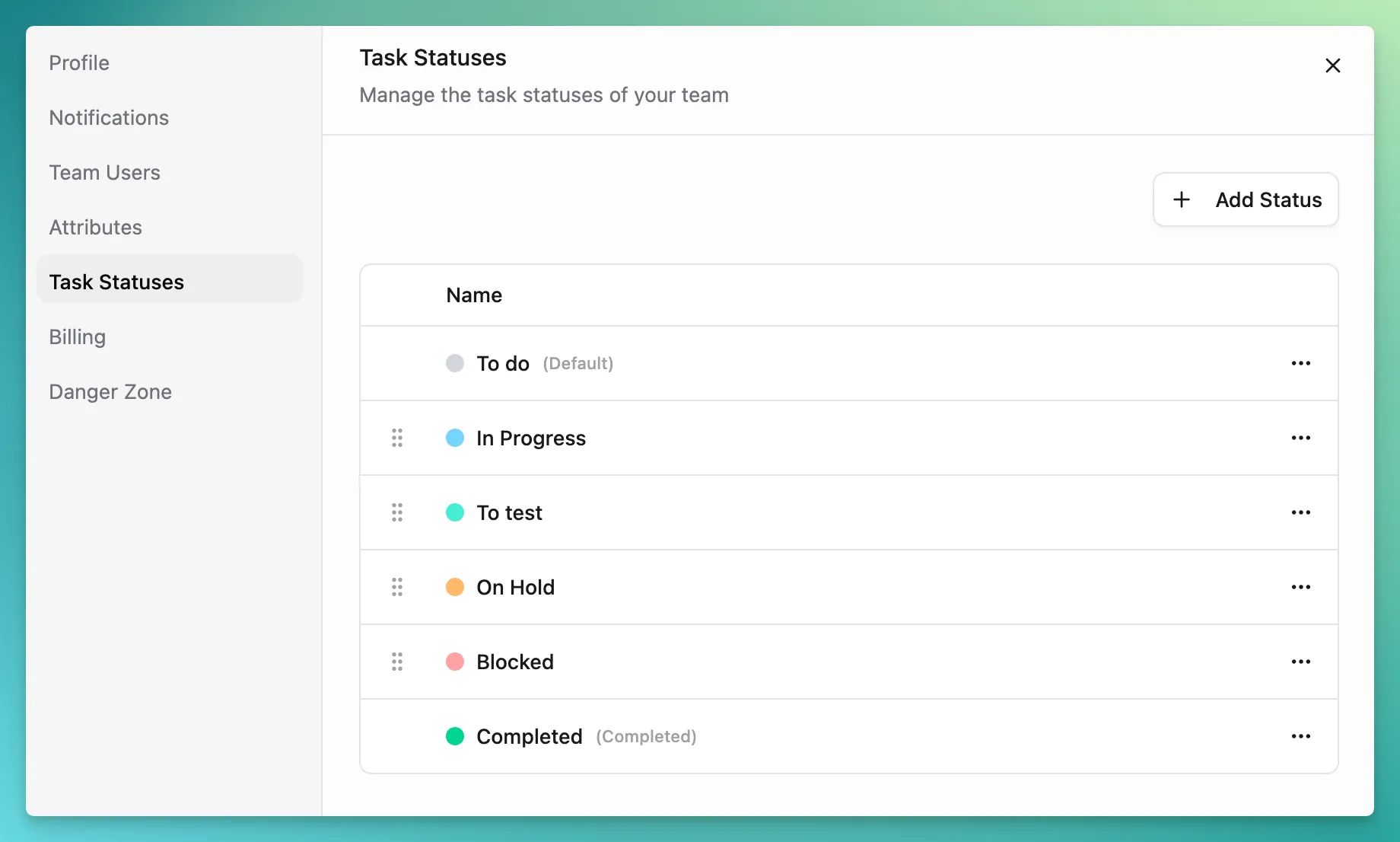
System statuses: To do and Completed
Section titled “System statuses: To do and Completed”“To do” and “Completed” are special. They can be renamed, but they:
- can’t be deleted,
- have fixed visual styling — “To do” renders without a colour, and “Completed” always renders green, regardless of any colour you set,
- stay locked at the start and end of the list — you can’t drag them out of place, and any new status you add slots in just before “Completed.”
The same green styling applies to any custom status you flag as completion-equivalent: completion is visually distinct from the rest of your workflow on purpose.
This keeps the workflow with a clear entry point and a clear finish line that the rest of the product (filters, completion tracking) can rely on.
Deleting a status
Section titled “Deleting a status”Removing a status is non-destructive. Any open tasks that were on that status get reassigned to To do automatically, and the remaining statuses are renumbered to keep the order tidy.
Completion tracking
Section titled “Completion tracking”Moving a task into the Completed status — or any custom status you’ve
flagged as completion-equivalent — stamps the task with a completed at
timestamp. Moving it back out clears the stamp.